Keep rows by rule
Part of the Cleaning Recipes Guide · Last updated: 2026-03-31
Retain only the rows that match a rule and discard the rest.
Helpful for creating a filtered export, such as keeping only rows with valid emails or active customers.
This page is intentionally detailed so you can understand not only which recipe to choose, but also how to prepare your CSV, what to expect during the apply flow, and what to verify after the change runs. That makes it easier to use saved recipes confidently on recurring imports instead of cleaning values by hand.
If you are comparing similar actions, start with the recipe preview below, then work through the screenshots and verification checklists further down the page. Those sections are designed to mirror the real UI you will see in Online CSV Editor.
Creates a trimmed export that keeps only usable contacts.
First-time walkthrough for beginners
If this is your first time using Keep rows by rule, follow these steps in order. The screenshots below come from the real product flow so you can compare your screen with the guide as you go.
Open a file and find one example you want to fix
Start by loading your CSV or a sample file into the editor. Before opening the recipe tools, look for one real example that should change, such as Rows with blank Email. That gives you something concrete to compare after the recipe runs.
- Check whether the issue appears in one column or across several columns.
- If the file is large, note a few rows you can revisit after applying the recipe.
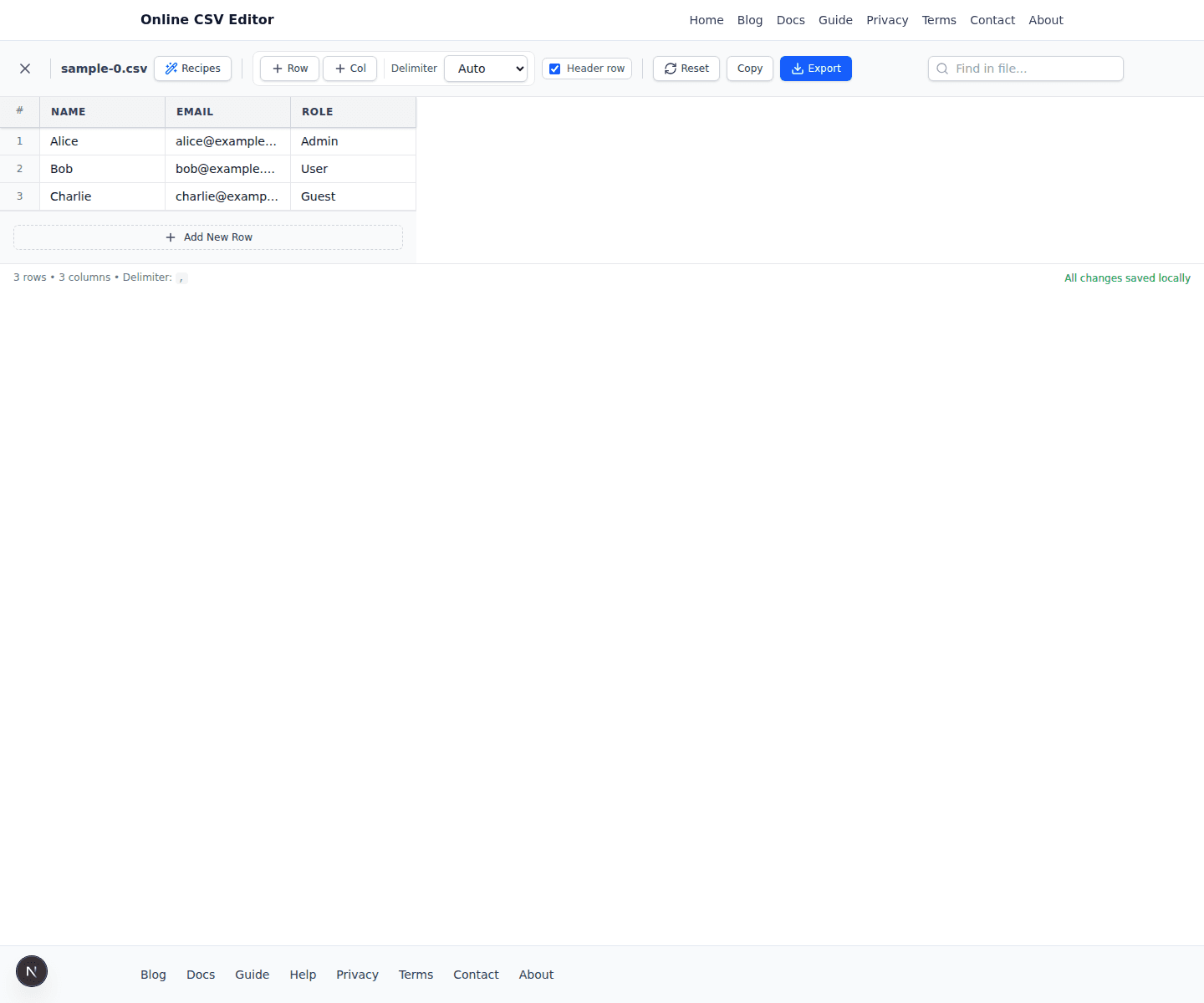
Open Recipes and start a new recipe draft
Click the Recipes button in the toolbar. Beginners can choose New recipe or Start from example, then save a reusable recipe after they confirm the action works the way they expect.
- Use Start from example if you want to learn the recipe editor with a safe starter action already loaded.
- Saved recipes stay browser-local unless you deliberately share the definition.
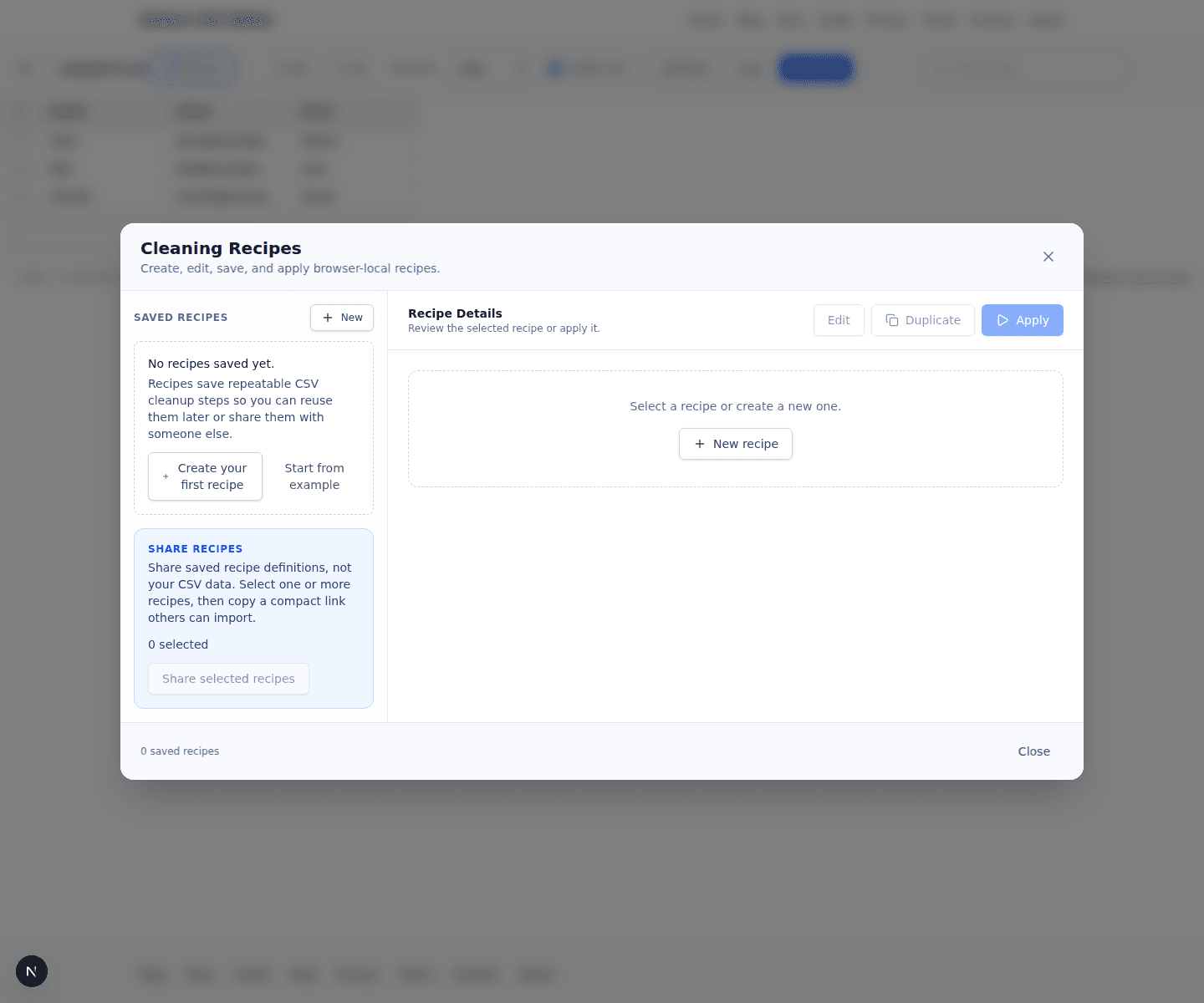
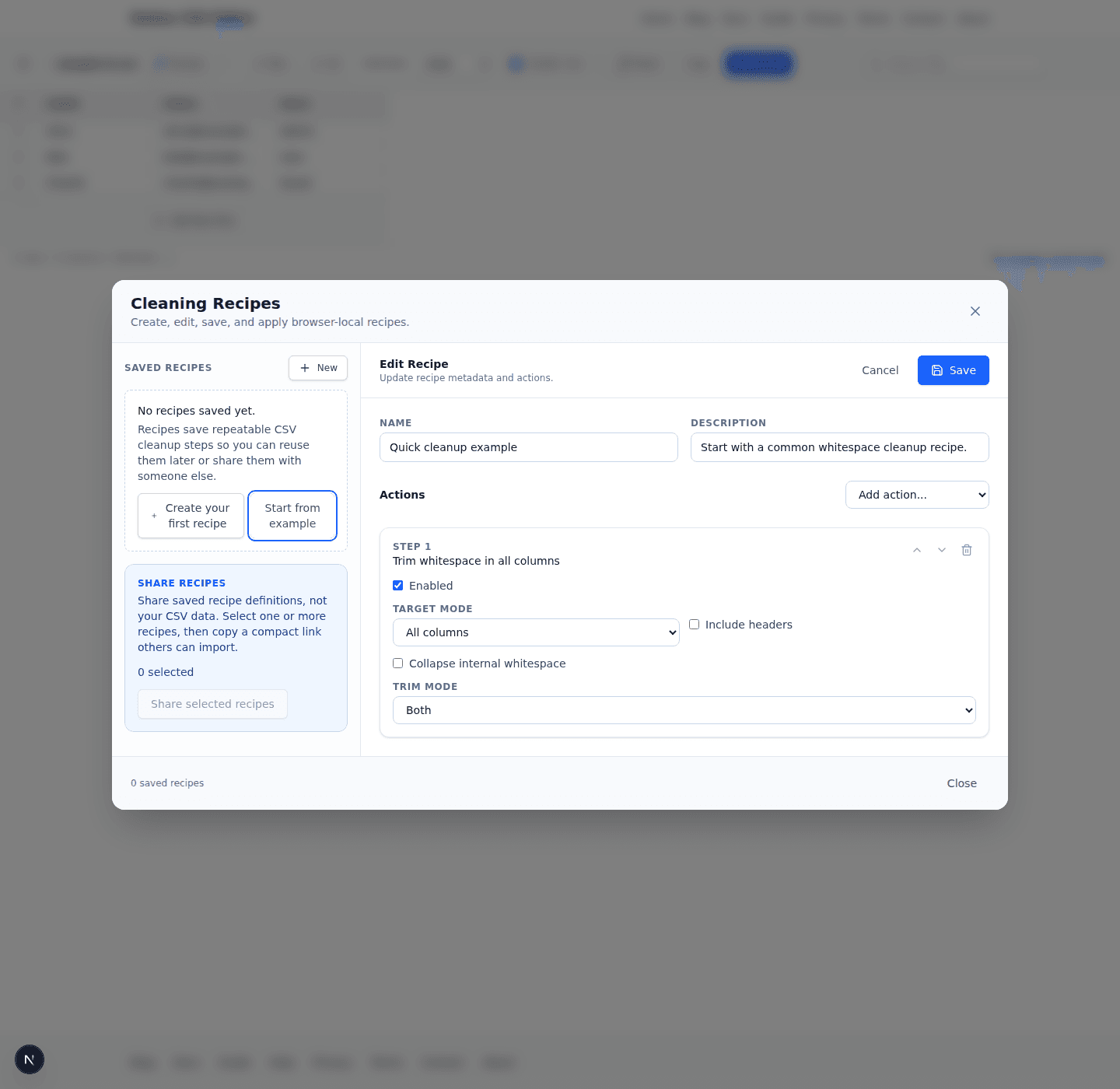
Configure keep rows by rule in the editor
This recipe is the opposite of delete rows by rule: it keeps only the rows that match. Think of it as building a filtered export, and remember that everything else will be discarded from the working table.
- Choose a clear keep rule such as Email is non-blank or Status equals Active.
- Use the most reliable column you have so the keep condition is easy to understand later.
- Review the remaining row count after applying to confirm the filtered subset is the one you wanted.
Apply the recipe and confirm the result before export
Apply the action, then compare the changed table against the expected result Only rows with Email kept. Use the apply summary together with the example panel below to confirm the recipe did what you intended before exporting the CSV.
- Make sure the output now matches the intended result, such as Only rows with Email kept.
- Read the apply summary and confirm that the changed row or cell count matches your expectation.
- Export the CSV only after scanning a few rows near the top, middle, and bottom of the file to catch edge cases.
Quick version
- Add Keep rows by rule and choose the condition that marks valid rows.
- Use a non-blank rule for columns like Email, or an equals rule for exact segments such as Status=Active.
- Apply the recipe and confirm that only the matching subset remains.
Example
This is especially useful when you want a focused working copy without manually filtering row by row.
Before you run this recipe
- Identify the exact columns or rows that keep rows by rule should change before you open the recipe form.
- Keep one visible example in mind, such as Rows with blank Email, so you can compare the result after the recipe runs.
- If you expect to repeat this cleanup on future imports, save the recipe with a descriptive name instead of applying it only once.
What to verify after applying
- Make sure the output now matches the intended result, such as Only rows with Email kept.
- Read the apply summary and confirm that the changed row or cell count matches your expectation.
- Export the CSV only after scanning a few rows near the top, middle, and bottom of the file to catch edge cases.
Common mistakes beginners should avoid
- Forgetting that non-matching rows are removed, not merely hidden like a spreadsheet filter.
- Choosing a column with inconsistent data and expecting a clean filtered list on the first try.
When this recipe is the right choice
Use Keep rows by rule when you want a repeatable cleanup rule instead of manual editing across many rows. The strongest clue is the use case itself: Helpful for creating a filtered export, such as keeping only rows with valid emails or active customers.
In practice, this recipe is most valuable when the same cleanup problem appears in recurring exports from CRMs, spreadsheets, analytics tools, or ecommerce platforms. Saving the recipe means you can apply the same standard every time a similar CSV arrives, which is exactly what makes the guide useful for long-term workflows rather than one-off fixes.
Use this recipe in context
Open the editor, import your file, click Recipes in the toolbar, and apply this action on its own or combine it with other saved actions. If you want the recipe to run immediately when a file opens, use the Apply recipe on import dropdown in the importer first.
For the best results, treat this page as a reusable operating note: review the example, compare it to your live CSV, run the saved action, and then return to the guide whenever you need to train a teammate or document a repeatable cleanup process.