Guide: how to use every cleaning recipe
By Online CSV Editor · Last updated: 2026-04-01
The Recipes feature in Online CSV Editor helps you save repeatable CSV cleanup steps, apply them in one click, and even share the recipe definition with someone else. To benefit SEO and make each topic easier to discover, every built-in recipe now has its own guide page.
This guide hub is intentionally long-form: it explains where recipes live in the interface, how to choose the right recipe page, what the workflow looks like in the product, and how to use the screenshots below as reference material when you document your own import process or train a teammate.
How to open recipes
- Import or paste your CSV into the editor.
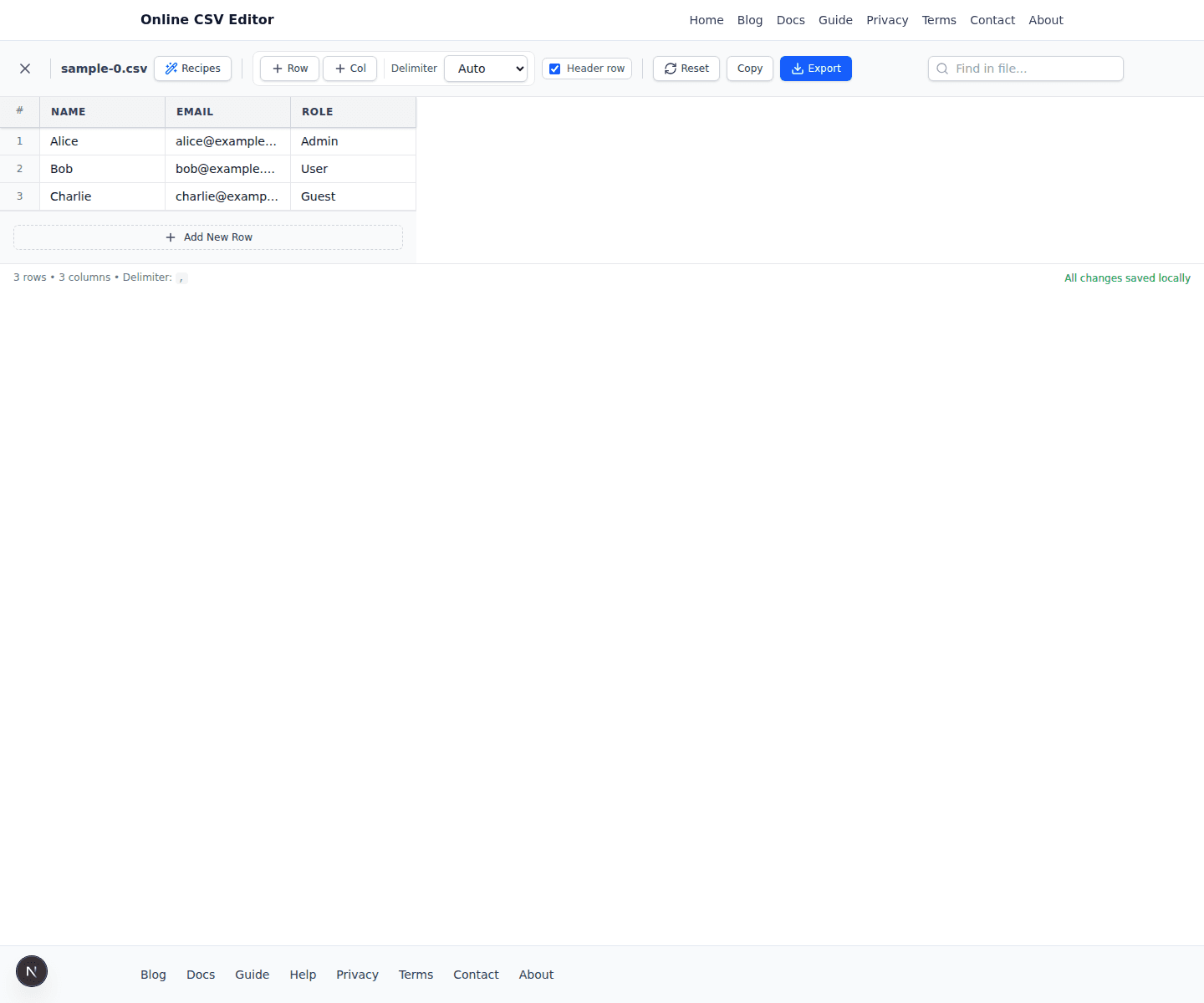
- Click Recipes in the top editor toolbar.
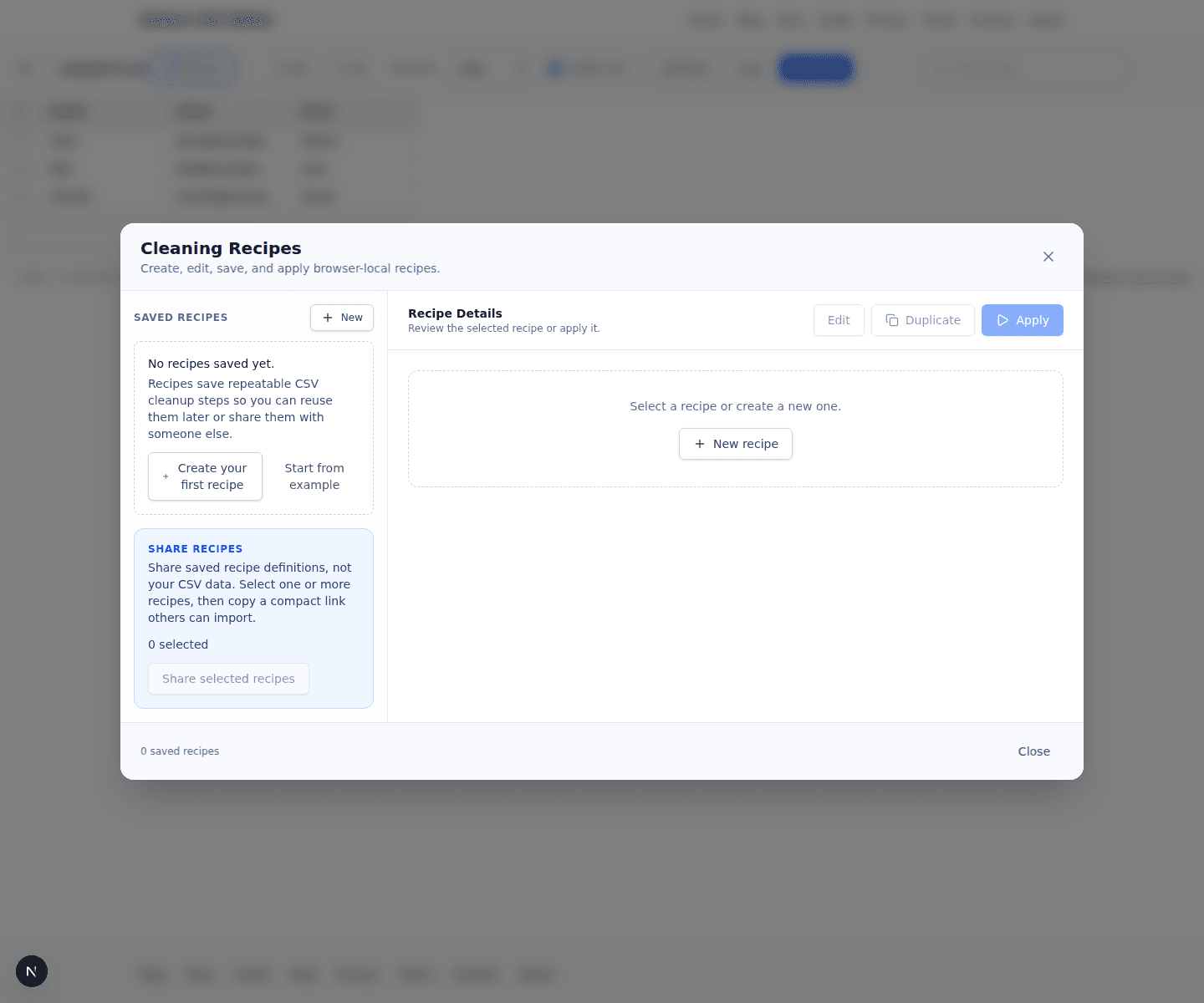
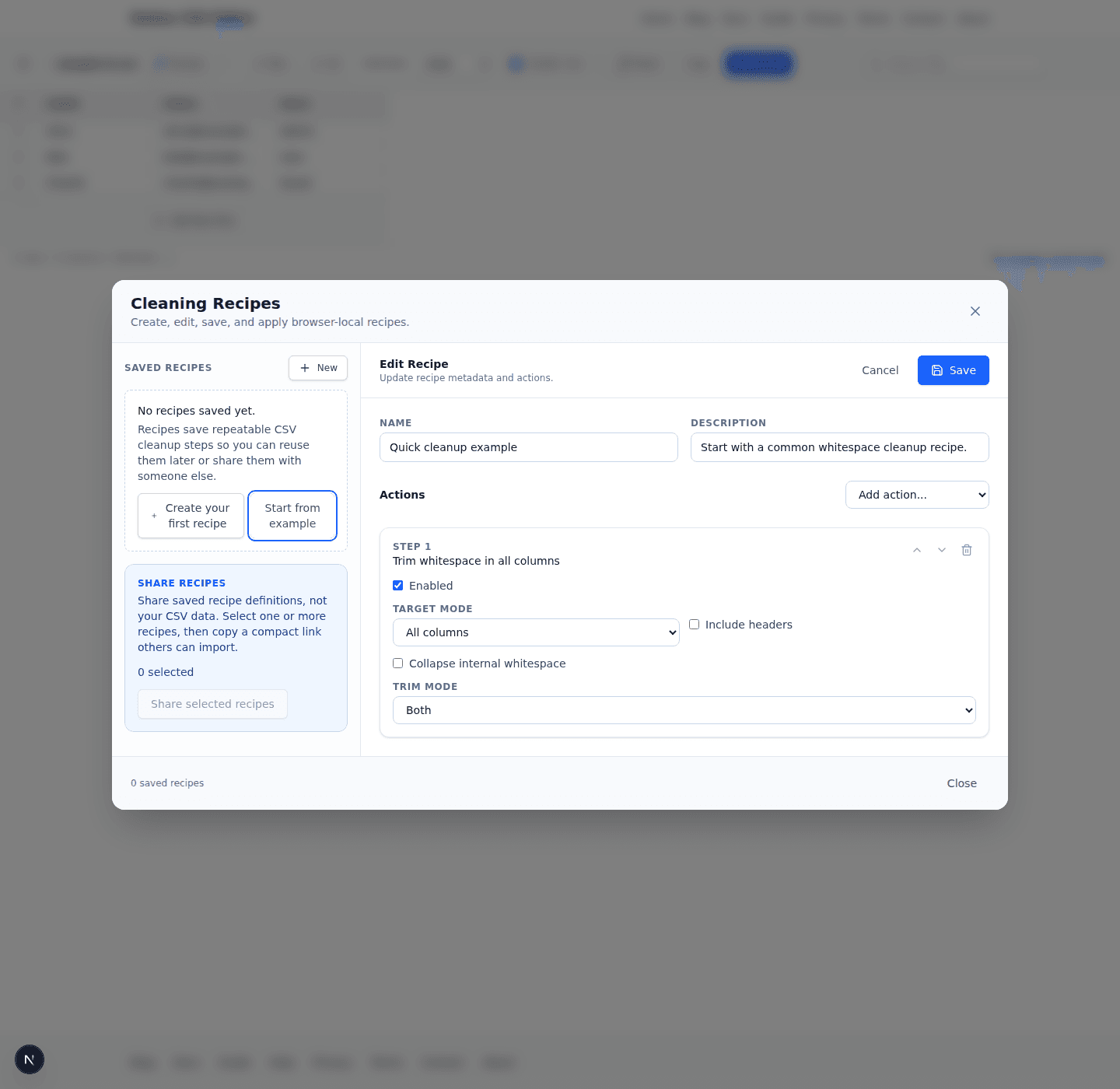
- Create a new recipe or select an existing saved one.
- Apply the recipe and review the summary before exporting.
You can also apply one on import
On the import panel, the Apply recipe on import dropdown lets you run a saved recipe the moment the file is opened. That is useful for recurring files that always need the same cleanup.
Need broader CSV help too? Start with the main editing walkthrough or browse the full docs hub.
How to get the most value from this guide
Start on the hub when you are comparing actions
The cards below are best when you are still deciding which action matches your CSV problem. Scan the summaries, choose the nearest use case, then open that detailed page for the longer walkthrough.
Use recipe pages as repeatable operating notes
Each dedicated recipe page now includes a richer explanation, screenshots from the product, example inputs and outputs, a first-time walkthrough, and checklists for what to verify before and after applying the recipe.
Screenshots from the real guide workflow
These screenshots were captured from the running app with Playwright and show the exact parts of the interface referenced throughout the guide: the editor toolbar and the Cleaning Recipes modal.
Choose a recipe guide
Open the dedicated page for the action you need. Each page includes a screen-style preview, exact steps, and a simple before/after example for that recipe only.
Trim whitespace
Remove extra spaces from the start, end, or middle of selected columns.
Best for CRM imports where names, emails, or SKUs contain accidental padding like “ Alice ”.
Convert date to ISO
Normalize dates into an import-friendly ISO format such as 2026-03-31.
Useful when source files mix formats like 03/31/2026, 31/03/2026, or spreadsheet-style date text.
Calculate row sums
Add totals across multiple numeric columns into one output column.
Helpful for finance, inventory, or quarterly-report CSVs that need a computed Total column.
Rename column
Change a header without changing any of the row values below it.
Ideal when an import requires exact headers like “First Name” instead of “First”.
Delete columns
Remove unused or sensitive columns from the final exported CSV.
Useful for stripping internal notes, helper fields, or legacy IDs before sharing a file.
Set static value
Fill one or more target columns with the same fixed value.
Use it when every imported row should carry the same source tag, campaign code, or status.
Find and replace
Bulk-replace text inside selected columns with a controlled search rule.
Great for standardizing statuses, correcting recurring typos, or updating old product labels.
Delete rows by rule
Remove rows when they match a rule such as equals, contains, blank, or fully blank row.
Useful for deleting test rows, blank records, or low-quality entries before import.
Keep rows by rule
Retain only the rows that match a rule and discard the rest.
Helpful for creating a filtered export, such as keeping only rows with valid emails or active customers.
Split column
Break one combined field into multiple columns using a delimiter.
Perfect for turning “Seattle, WA” into separate City and State columns.
Merge columns
Combine multiple columns into one output field with a separator.
Great for creating Full Name, Address Line, or composite labels from several columns.
Remove duplicate rows
Deduplicate rows using one or more key columns.
Best for import files where Email, SKU, or Customer ID must be unique.
Change text case
Convert selected text to lowercase, uppercase, or title-style casing.
Useful for normalizing country codes, tags, or inconsistent user-entered names.